
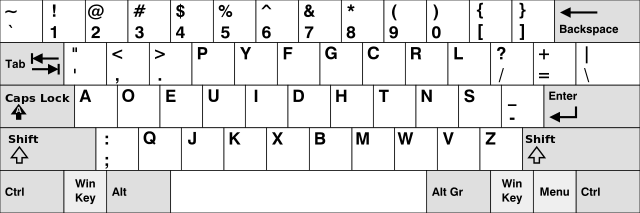
About six or seven years ago I switched from using the QWERTY keyboard layout to the Dvorak layout. It was quite a big change as I had been using QWERTY for about 15 years. I thought it would be useful to describe the pros and cons, operating system support, and other things to consider for those who are thinking of making the switch.
Motivation
I had two motivations to consider switching away from QWERTY. The first was the prospect of being able to type faster and with less risk of repetitive strain injury by using a more efficient layout. Pain in my fingers and joints was rare, only ocurring after programming for several hours a day for multiple days in a row. However I figured that I’ll spend 50,000+ hours at the keyboard over the next 30-40 years, so I might as well do what I can now to prevent future problems.
Secondly I was surprised to discover after reading the history of keyboard layouts that QWERTY is inefficient by design! Back in the days of some of the first mechanical typewriters the keyboard layout was more or less alphabetical. In some cases the metal arms attached to the keys would jam if keys close to each other were pressed around the same time. Over time the QWERTY layout was created to prevent this type of jamming by forcing common letter pairs to be far apart on the keyboard, which also meant that average typing speed decreased. By the time better mechanical typewriters were invented that would not have had the jamming problem the QWERTY layout was already the de facto standard.
Pros
- Dvorak is demonstrably faster and more efficient than QWERTY. Most of the time your fingers stay in the home row, because the most commonly used characters (in English) are in the home row. Also since in English consonant-vowel and vowel-consonant are much more common than consonant-consonant or vowel-vowel, all the vowels are in the home row on the left. That means you spend more time using both hands alternating between letters, which is faster than having to use a single hand for consecutive letters.
- That being said I think it’s more about comfort that speed. There is a maximum speed at which I’m comfortable moving my fingers while typing. With Dvorak that translates to higher words per minute than QWERTY since my fingers don’t have to travel as far. So I type at the same “speed” as QWERTY in terms of finger movement, but it results in more words per minute.
- Basically all operating systems support Dvorak. You can easily switch to the Dvorak layout in software without having to get a special keyboard.
- Less risk of repetitive strain injury.
Cons
- Learning a new layout takes time and you will be slow at first.
- You must manually switch the layout on the computer you are using, and switch back to QWERTY out of courtesy if it’s a shared computer.
- Gaming and vi. Many games use the keys w,s,a,d for movement and the surrounding keys for options and control with a game. You either have to remap the keys in the game or switch back to QWERTY before starting the game. Likewise in vi h,j,k,l are used for cursor movement. In the case of vi I used the arrow keys anyway so it’s not an issue. For games I switch back to QWERTY.
- Phone support. I don’t really see this as a con as you don’t touch type on a phone and it’s not like you forget the QWERTY layout, but it would be nice if I could use Dvorak on everything.
Do’s & Don’ts
The following are considerations and recommendations for those who are thinking of making the switch.
- DO make the switch all at once. I don’t think it would be practical to start learning Dvorak a little at a time while still using QWERTY, since it all comes down to muscle memory, which would become confusing trying to mix the two. I suggest starting at the beginning of a long weekend or even on a vacation so that by the time you get back to work or school you’ve learned the new layout and can type sufficiently fast to be productive.
- DO use software to learn the layout. The easiest way to learn is the same way you learned QWERTY, by repetitive (and boring, I know) drills that start with a couple of keys in the home row and add keys gradually. I used KTouch on Linux, and there are similar programs for other operating systems. You’ll be surprised by how quickly you learn the letters and common punctuation symbols. If you are a programmer it might take a little longer to memorize where all the braces, brackets, etc. are since these types of applications typically don’t cover those characters.

- DON’T rearrange the keys on your keyboard to make it look like Dvorak. The goal should be to touch type, regardless of layout. I think it’s actually an advantage that the physical keyboard still looks like QWERTY because it forces you to learn to touch type, and in the end that increases speed and frees your eyes to look at the screen instead of the keyboard. Also:
- You might break the keyboard. Don’t assume the keys will go back in as easily as they came out.
- Many keyboard have keys that are not all the same shape, so you wouldn’t be able to switch them all.
- Sometimes you may want to switch back to QWERTY temporarily (e.g. games).
- Bonus: If someone is secretly watching you type in order to steal a password or something, they will be disappointed since the characters you are typing are not the same as the keys on the physical keyboard. Instant encryption!
- DON’T forget to switch back to QWERTY when you are done using a shared computer. Be kind, rewind :).
Operating System Support
- Linux: The layout can be permanently changed in the System Settings of KDE or GNOME. To temporarily change the layout you can do “Alt+F2 -> setxkbmap dvorak” or from a terminal “loadkeys dvorak”. To switch back the commands are “setxkbmap us” or “loadkeys us”
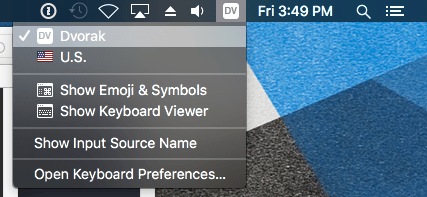
- macOS: They keyboard layouts are in System Preferences -> Language & Region -> Keyboard Preferences. Then under Input Sources add a new layout and select Dvorak. Once it’s added there will be an input selector on the right hand side of the Menu Bar by the clock that you can use to switch back and forth.

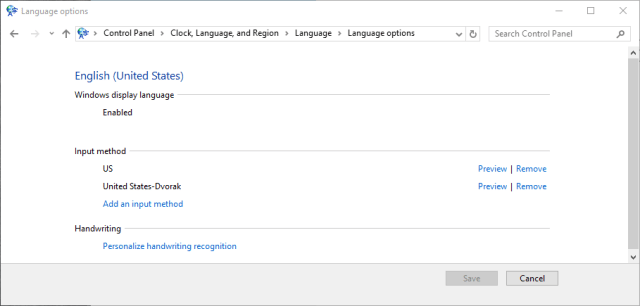
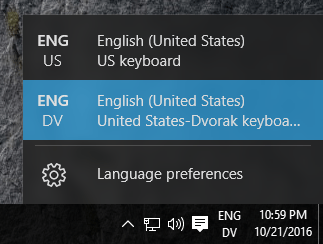
- Windows: The layouts can be changed via Control Panel -> Clock, Language, and Region -> Language -> Language Options. Then select “Add an input method” and add Dvorak. Once the new layout is added, there will be an input selection tool by the clock, similar to macOS.
 Vernon W. Miller